Here's the notice on the teacher blog:
Teachers,
I spoke during the summer of an upgrade to PowerTeacher that would be available around the holiday time. The release is set to happen in mid December and here is what I have found so far that it will contain:
* The ability to import scores
*A "final grades mode" button for you to let the office know your grades are ready to be published to the report cards
*A "mouse over" for comments, which means if you put your mouse over the area where you added a comment you will be able to see the comment without needing to click and reopen Score Inspector
*The Categories box has now been moved to the same place as the other icons on top of the page so you will no longer have to go to "Tools" to open create categories
What is NOT in the upgrade is a Seating Chart, something that was mentioned originally. There is a seating chart program that I can obtain from another company so I will look into it after the upgrade.
I will keep you informed as I receive information.
Happy Thanksgiving!
Adele
Monday, November 24, 2008


Monday, November 3, 2008
How to Print Report cards
Prior to the printing of report cards the teachers (core and special subject areas) must have completed comments, pluses and checks, and grading. The steps the teachers need to follow are on the teacher blog, http://domps.blogspot.com/. Once all teachers confirm they have followed the directions, schools new to the system will need to call me to store the information. Report cards will not print with grades or comments until the grading is historically saved. Please note: once grades are stored, teachers can not change them. Please contact me if this is an issue.
Printing of the report cards takes no more than a day. Those schools who are "live" to parents will need to store grades as close as possible to print time. Once grades are stored parents can see them on line. It would be best to either email or text me on my cell phone to complete the storing process. The process for storing grades takes only minutes - the most time consuming part is the printing process.
How to print:
First, click on the grade level number on the opening page of PowerSchool. Once the list of students appear, click on the arrow in the empty box to choose a function - choose Print Report. On the next screen, click on the arrow next to the question, "Which report?" and choose "Metuchen 1" for first grade classes, "Metuchen 2" for second grade classes, "Metuchen 3" for third grade classes, etc. The grade level must match the report card. The Report Queue page will appear. Depending on the number of students you have in that grade level will determine the amount of time for the reports to be processed. I recommend running 3 grade levels at a time. Repeat the above step for each grade and let it run. Come back to it several minutes later. Once the word "running" turns into the word "completed" (if you are not sure what this means see previous blog entry regarding running attendance report) you can open the file for printing. Since our report cards are two sided and many of you have the two sided Ricoh printers follow the directions below:
Once the file is open and you click "File" then "Print" at the top of the page, you will need to select the correct printer. When choosing the duplex printer you must click on "Properties" before you click on Print. When the properties page is open you must choose to turn the duplex on as shown in the picture below:
Printing of the report cards takes no more than a day. Those schools who are "live" to parents will need to store grades as close as possible to print time. Once grades are stored parents can see them on line. It would be best to either email or text me on my cell phone to complete the storing process. The process for storing grades takes only minutes - the most time consuming part is the printing process.
How to print:
First, click on the grade level number on the opening page of PowerSchool. Once the list of students appear, click on the arrow in the empty box to choose a function - choose Print Report. On the next screen, click on the arrow next to the question, "Which report?" and choose "Metuchen 1" for first grade classes, "Metuchen 2" for second grade classes, "Metuchen 3" for third grade classes, etc. The grade level must match the report card. The Report Queue page will appear. Depending on the number of students you have in that grade level will determine the amount of time for the reports to be processed. I recommend running 3 grade levels at a time. Repeat the above step for each grade and let it run. Come back to it several minutes later. Once the word "running" turns into the word "completed" (if you are not sure what this means see previous blog entry regarding running attendance report) you can open the file for printing. Since our report cards are two sided and many of you have the two sided Ricoh printers follow the directions below:
Once the file is open and you click "File" then "Print" at the top of the page, you will need to select the correct printer. When choosing the duplex printer you must click on "Properties" before you click on Print. When the properties page is open you must choose to turn the duplex on as shown in the picture below:

Once the duplex is turned on you will need to make sure it prints from the left as shown in this picture:

PLEASE TEST A SINGLE REPORT CARD PRINTING PRIOR TO THE TRUE PRINTING PROCESS. You will want to make sure it works well before the printing date. Although grades and comments will not print, you will be able to see if the front and back print correctly.
Wednesday, October 29, 2008
Time to Print Report Cards - Part I
The first marking period ends on November 7th. When do you print report cards? Printing of report cards is done in the OFFICE, not by the individual teachers. There is no typing involved - all information comes from PowerSchool. The paper that is required is simply regular 8 1/2 x 11 paper - no special color or type required. I know that the previously printed report card was larger than that size but it is not required anymore.
The first step, for those new to this system is to make sure your teachers have the grades in their quarter final grade correct. This must be done by having the teachers verify or let you know the grades are correct ann all comments and checks and pluses are done. Information for the teachers regarding this step is on the teacher blog - please have them refer to it. Once all the teachers have verified the grades are correct the PowerSchool person in your school MUST call me to store the grades. IF THIS PROCEDURE IS NOT DONE GRADES WILL NOT APPEAR ON THE REPORT CARD.
The above step must be done two days prior to the printing day. Printing should not take place more than 2 days before the report cards are to be sent home. Once I store the grades, which is called historically saving grades we are ready to print. That will be in the next post. Please e-mail me with the dates you think you will be saving grades and I will add it to my calendar.
Adele
The first step, for those new to this system is to make sure your teachers have the grades in their quarter final grade correct. This must be done by having the teachers verify or let you know the grades are correct ann all comments and checks and pluses are done. Information for the teachers regarding this step is on the teacher blog - please have them refer to it. Once all the teachers have verified the grades are correct the PowerSchool person in your school MUST call me to store the grades. IF THIS PROCEDURE IS NOT DONE GRADES WILL NOT APPEAR ON THE REPORT CARD.
The above step must be done two days prior to the printing day. Printing should not take place more than 2 days before the report cards are to be sent home. Once I store the grades, which is called historically saving grades we are ready to print. That will be in the next post. Please e-mail me with the dates you think you will be saving grades and I will add it to my calendar.
Adele
Sunday, September 28, 2008
Did you know - you can run a monthly birthday list?
There is a birthday list that can be run from PowerSchool to list the students who have a birthday each month - it lists their names, birthdates, grade and age. Here's how to get yours:
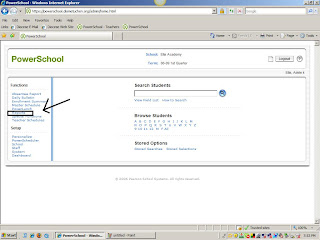
First, click on Reports
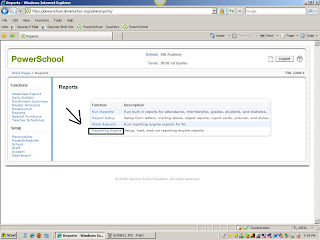
Then choose the last item, "Reporting Engine"
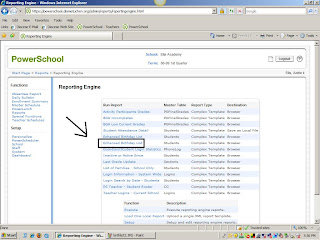
There are two Enchanced Birthday List choices, choose the second one:
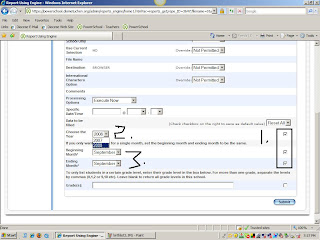
The next page has three important areas. Go toward the bottom of the page. Click in the empty boxes on the right hand side. Then choose the year, 2008. The last part is to choose the month. Both choices must be the same if you want one month to print. If you want more than one month than the second choice should be the last month. Click submit on the bottom right side of the page when you are done.
Once you click on Submit, a new page will open up with the actual report. Use the regular "file" and "print" on your computer screen in the upper left hand corner.

First, click on Reports

Then choose the last item, "Reporting Engine"

There are two Enchanced Birthday List choices, choose the second one:

The next page has three important areas. Go toward the bottom of the page. Click in the empty boxes on the right hand side. Then choose the year, 2008. The last part is to choose the month. Both choices must be the same if you want one month to print. If you want more than one month than the second choice should be the last month. Click submit on the bottom right side of the page when you are done.

Once you click on Submit, a new page will open up with the actual report. Use the regular "file" and "print" on your computer screen in the upper left hand corner.

Subscribe to:
Posts (Atom)